How to add motion graphics to talking-head videos (without After Effects)
A practical guide to on-screen cards for talking-head and explainer videos: what to put on screen, when to show it, how long to hold it, and how to do it without a motion designer.
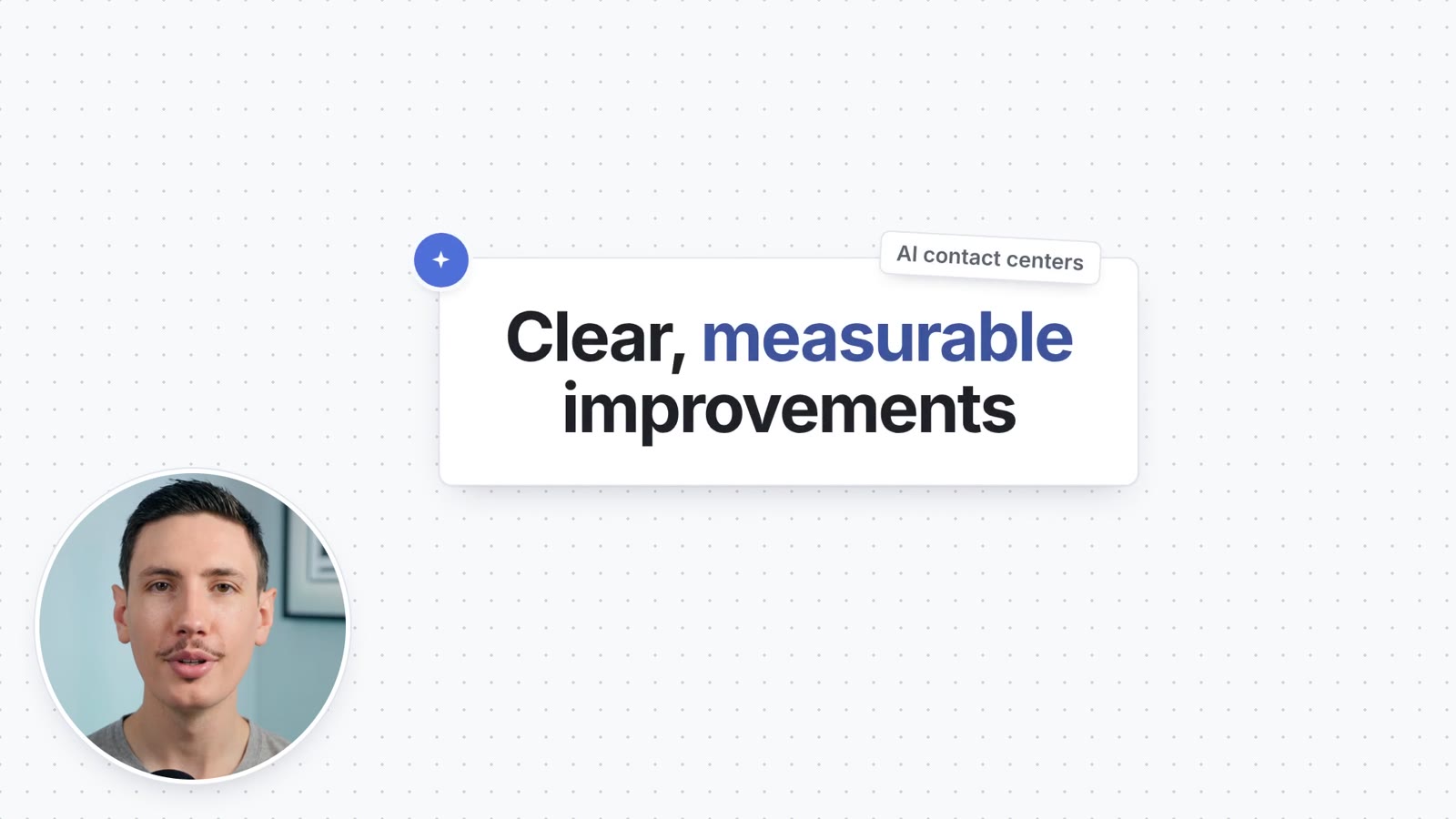
A talking-head video lives or dies on one thing: whether people stay with it. The camera, the mic and the lighting matter less than you'd think. What keeps someone watching a ten-minute explainer is the feeling that it's moving, and that they're getting the point without having to work for it.
That's what motion graphics do in a talking-head video. Not flashy transitions or spinning logos, but simple on-screen cards that show the key point at the moment you say it. I've made these for client videos for years, mostly by hand, and the rules that make them work are surprisingly consistent. This guide walks through them.
What "motion graphics" means in a talking-head video
In an explainer, motion graphics are mostly on-screen cards: short pieces of text, a list, a number or a simple chart that appear while you talk, then get out of the way. The speaker stays in the frame, often moved into a small circle in the corner so the card has room.
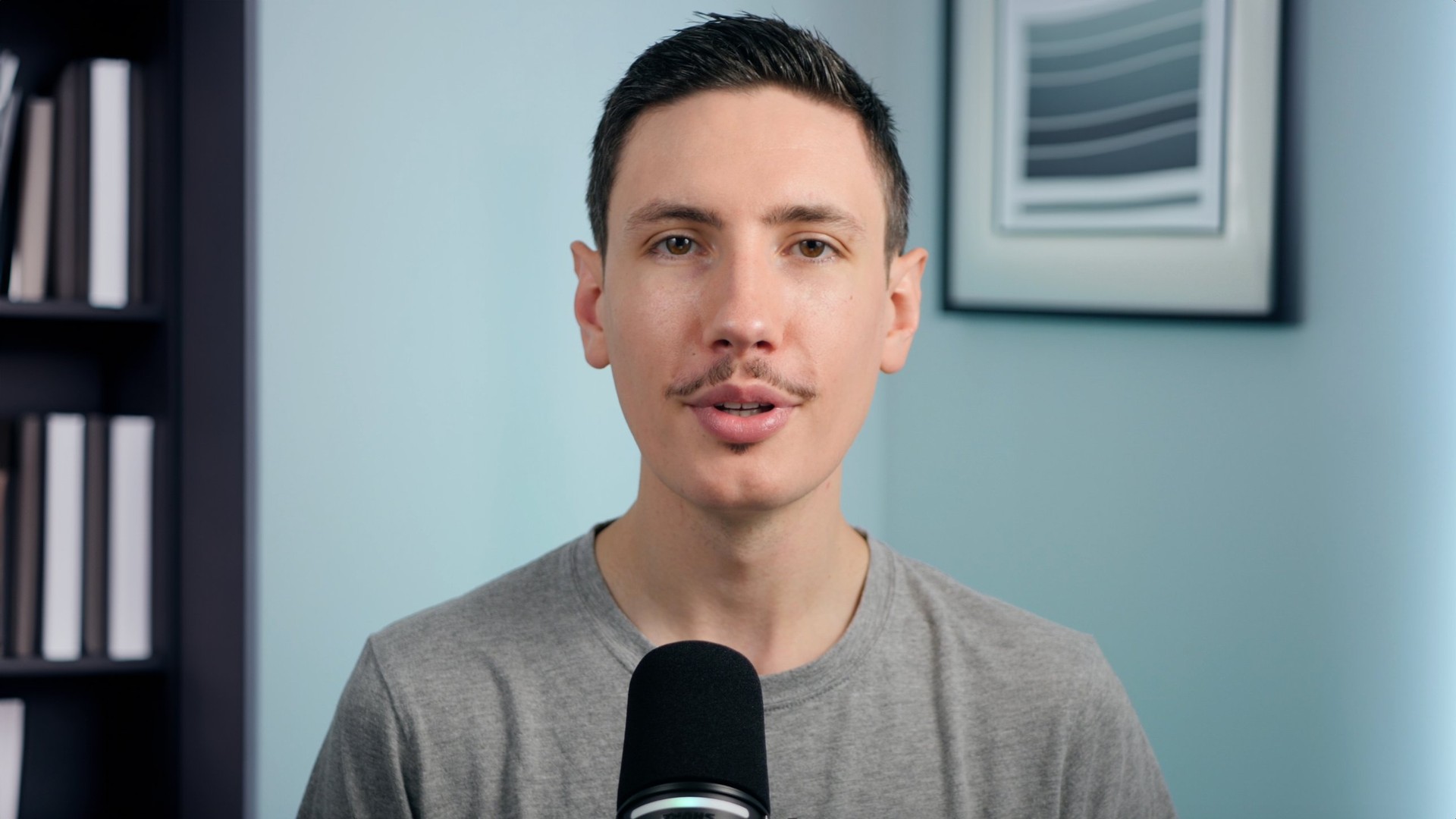

The difference isn't decoration. In the first shot, the viewer has to hold your point in their head. In the second, they can see it. That's the whole job.
The four cards that cover almost everything
You don't need a big library of templates. Nearly every moment worth a graphic in an explainer fits one of four shapes.
1. The title card
The point of a section, in a few words. Use it when you start a new idea or land an important claim. Keep it to one short line, two at most, with the one word that matters highlighted.
2. The list card
When you name three or four things, put them on screen as you say them. A list card is the single most useful card in an explainer: it turns "there are three reasons…" into something the viewer can follow and remember.
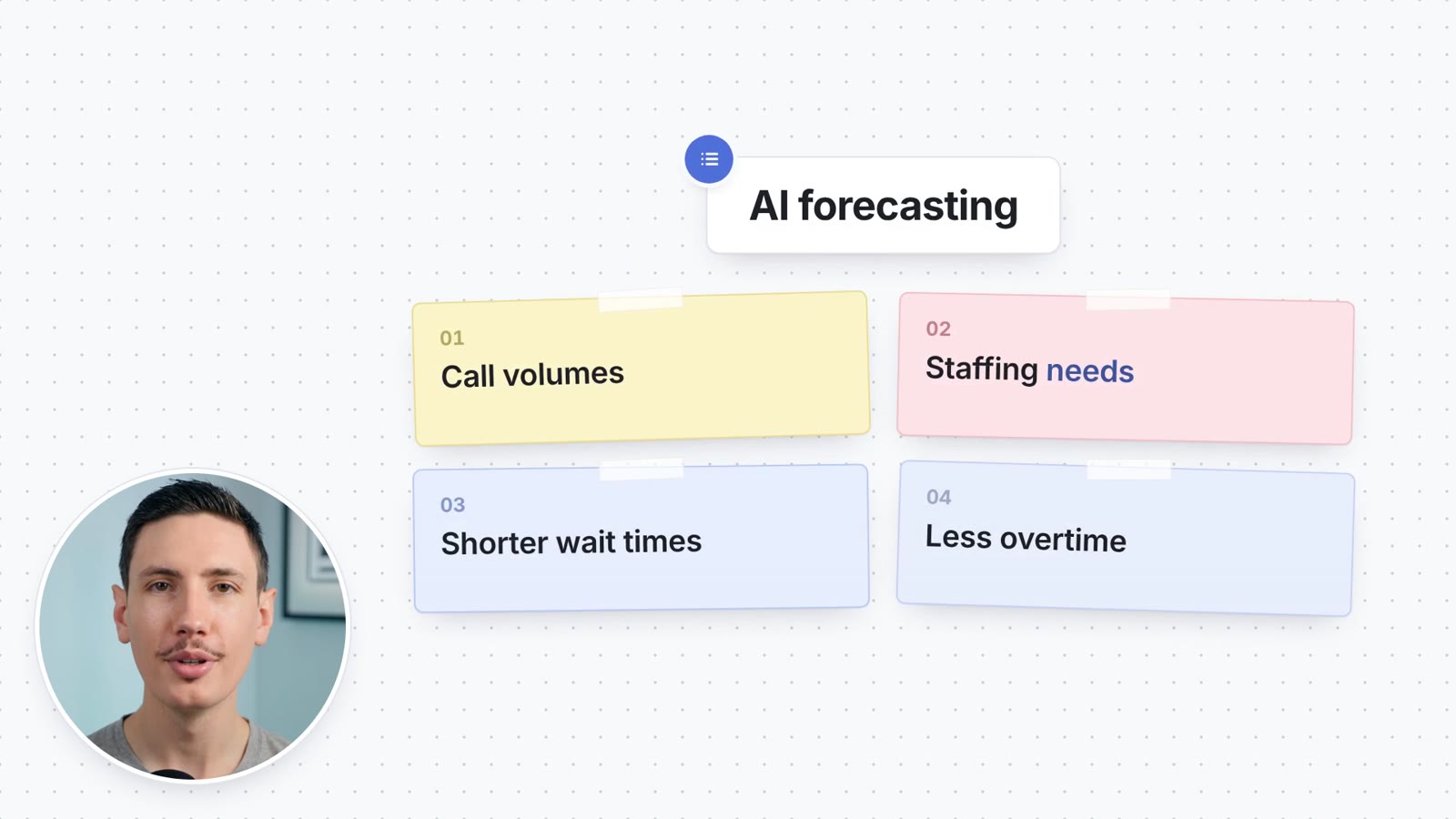
Write every item in the same grammatical shape ("Call volumes", "Staffing needs", "Shorter wait times") and keep each one to a few words. If an item needs a full sentence, it belongs in your script, not on the card.
3. The stat card
Any time you say a number, show it. Numbers are hard to hold in your head by ear and easy to take in by eye. Put the number big, with a short label underneath that says what it measures.

One rule I never break: the number on screen has to match exactly what's said. If the speaker says "about eighty percent", the card says 80%, not 82.4%.
4. The chart
When you compare things over time or against each other, a simple bar or line chart does in two seconds what a paragraph can't. Keep it to a handful of values, all of them numbers you actually say.
When to show a card (and when not to)
Timing is where most talking-head graphics go wrong. A good card appears as the words start, not after. If the card shows up a second late, the viewer has already heard the point and the card feels like an echo.
A few rules that hold up across almost every video I've edited:
- Land on the phrase. The card comes in when the sentence that carries the point begins, and it's gone by the time the next idea starts.
- Leave room to breathe. Not every sentence needs a card. Going back to the speaker full screen between cards keeps the video human. As a rough guide, cards on screen for about half the video feels balanced; much more than that starts to feel like a slideshow.
- Don't cover the hook. The first few seconds belong to the speaker. People decide whether to keep watching based on a face and a voice, not a card.
- Avoid long runs of the same card. Three title cards in a row feel repetitive. Mix in a list or a stat where what's said allows it.
How long to hold a card
Long enough to read twice, and not much longer. In practice:
- A short title card: about 3 to 6 seconds.
- A list: long enough for the last item to be read, usually 5 to 9 seconds.
- A stat: 3 to 5 seconds. A number is read in a glance.
If a card needs more time than that, it has too much on it. Cut words before you add seconds.
Writing text that works on screen
On-screen text isn't the transcript. It's the headline of what's being said. A viewer reads it in a second while listening to you, so it has to carry one idea, never a paragraph.
- 2 to 6 words for a title. "Your system grows with you", not "A contact center platform that is able to scale as your business grows".
- One highlighted word. The one that matters most. If everything's highlighted, nothing is.
- Use the speaker's own words. The card should feel like the point they just made, not a new one.
- No full sentences, no ending punctuation, no filler. "And much more" never earns its place on a card.
Three ways to do it
Do it by hand in your editor
Premiere Pro, Final Cut and DaVinci Resolve can all do this with text layers, a few saved presets and some keyframes. It works, and you get full control. The cost is time: placing, writing and timing cards for a ten-minute video by hand is easily a few hours, and keeping a consistent look across videos takes discipline.
Hire a motion designer or editor
This is how most channels with polished explainers do it. The results are great, but it's the most expensive option, and the turnaround makes it hard to publish often.
Let a tool place the cards for you
This is the newest option and the one I've been building toward with Cardflow. You upload a talking-head video; it transcribes it, works out which moments deserve a card, writes the card in a few words, times it to the exact phrase, and frames you in a corner circle in your brand's style. Everything stays editable: you can change any card's text, move it on the timeline, or swap its type before you export.
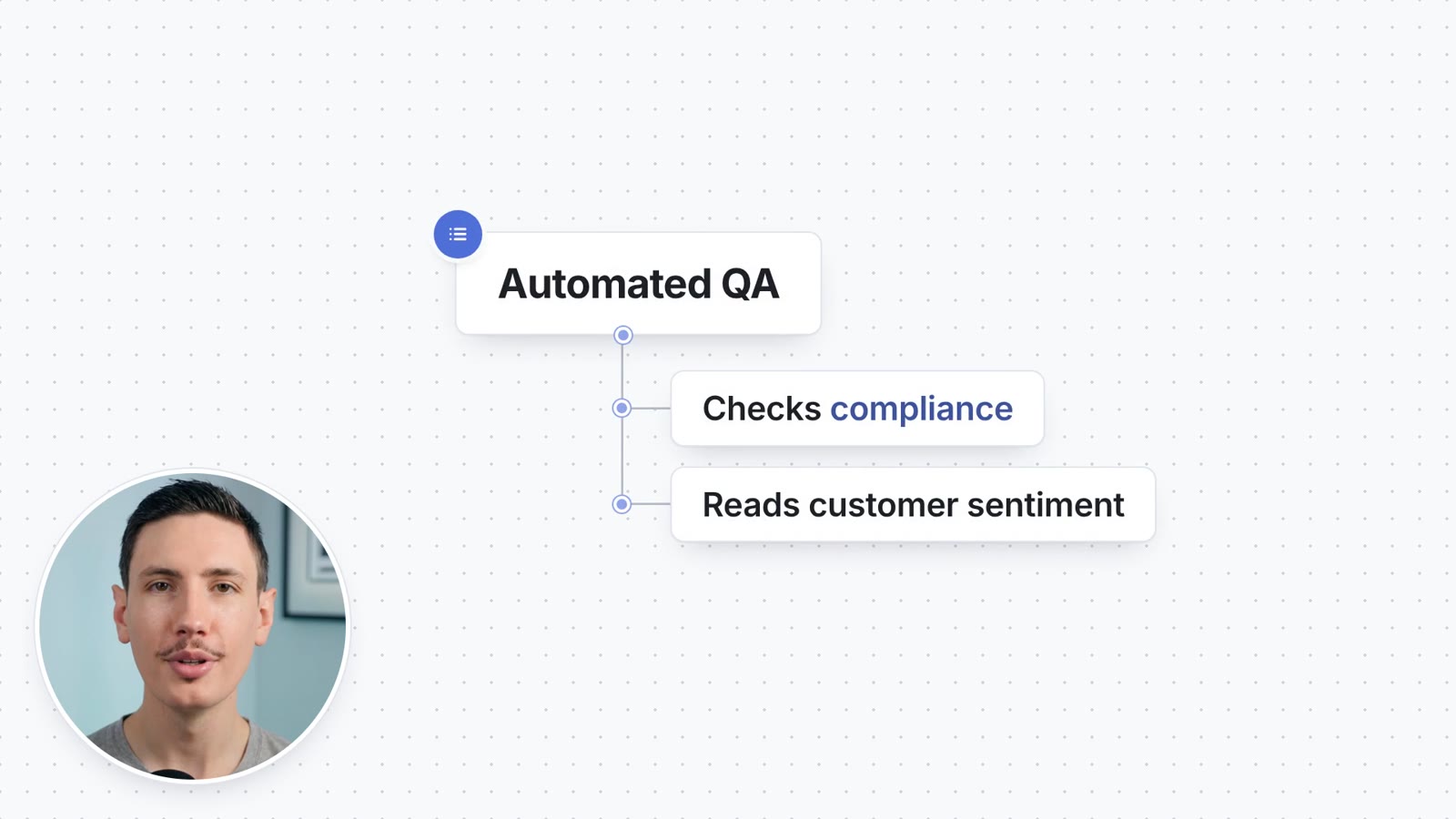
Whichever route you choose, the principles above are what make the result feel professional. A tool just means you don't have to apply them by hand every time.
A quick checklist before you publish
- Does every card appear as the words start, not after?
- Is every number on screen exactly what's said?
- Is each title six words or fewer, with one highlighted word?
- Are there full-screen moments between cards, especially at the start?
- Could anyone read each card twice in the time it's on screen?
If you can answer yes to all five, your talking-head video will feel edited, not just recorded.